Editor & cutting
With the Editor you turn a daily preview into a finished film. You cut scenes, choose the X5’s view direction, mix sound and music and finally render in 1080p.
Tip: Picture first, then sound. Picture changes create a new version with Render cut. That takes minutes. Remix sound remixes sound changes in seconds without touching the picture.
Recommended workflow
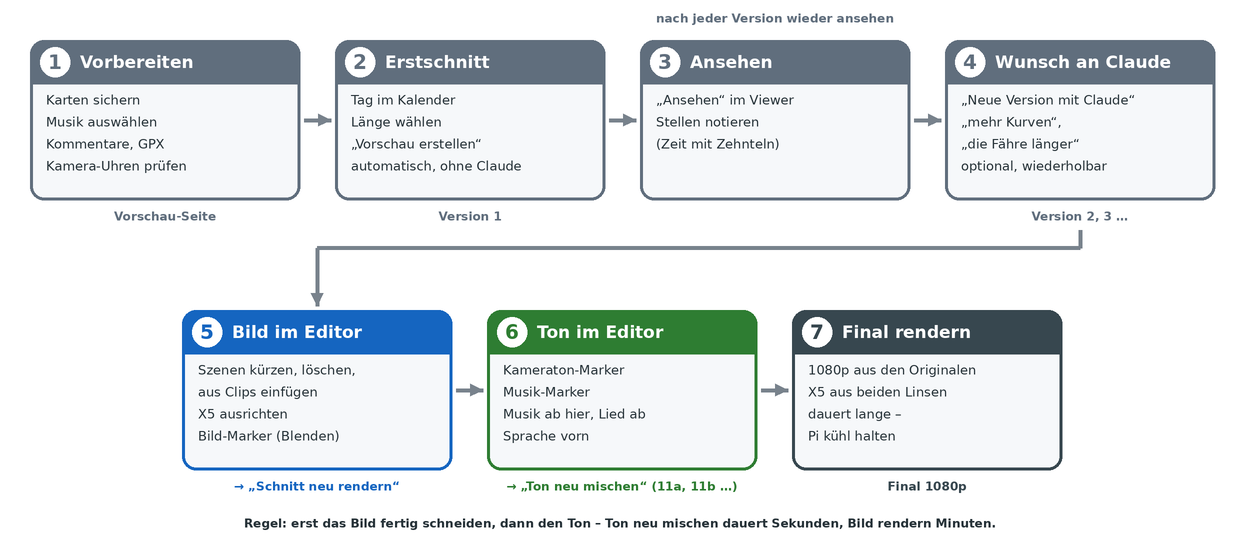
- Prepare (Preview page): Back up the cards, choose the music and upload voice comments and GPX. For cameras with a wrong clock, first set the camera clocks (by hand or with the Time clapper). Otherwise clips end up on the wrong day or in the wrong place.
- First cut: Choose the day in the calendar, choose the length and tap Create preview. The Pi cuts the first version automatically, without Claude.
- Watch: Look through the version in the viewer with Watch. The time in the control bar shows tenths of a second. Note the places you want to change.
- Wish to Claude (optional): Describe rough changes in words, e.g. “more bends”, “the ferry longer” or “music quieter when I talk”, and tap New version with Claude. You can repeat this as often as you like. Each round produces a new version.
- Picture in the Editor: Open the best version in the Editor and finish the picture: trim, move and delete scenes, insert scenes from clips, aim X5 scenes, set picture fades. Then tap Render cut. A new version is created.
- Sound in the Editor: Open the new version in the Editor again and mix the sound: camera sound and music markers, music start, “Speech in front”. Remix sound creates a sub-version in seconds (e.g. 11a, 11b …). Repeat until everything fits.
- Render final: Tap Render final on the finished version. The Pi renders 1080p from the original files.
Why this order? Render cut does carry over sound, music and markers, but takes minutes. Remix sound takes only seconds but never changes the picture. Fix the picture first and render it only once. You can then remix the sound as often as you like.
Opening the Editor
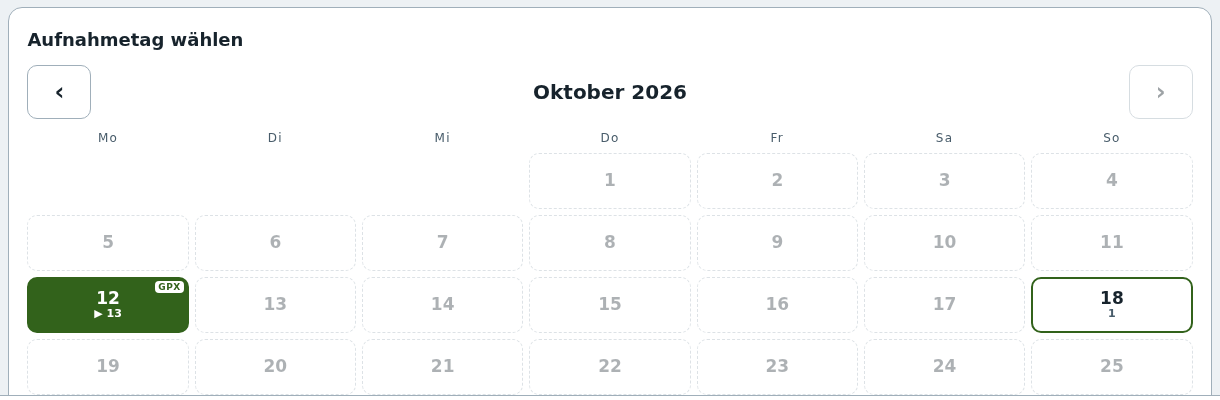
- Open the Preview page and tap the day in the calendar. Days with videos are highlighted. The number below (▶ 13) counts the versions, GPX indicates a GPS track.
- Below are the day’s versions. Each card shows number, quality, length and title, the wish, the music, Claude’s reply and the number of sound markers.
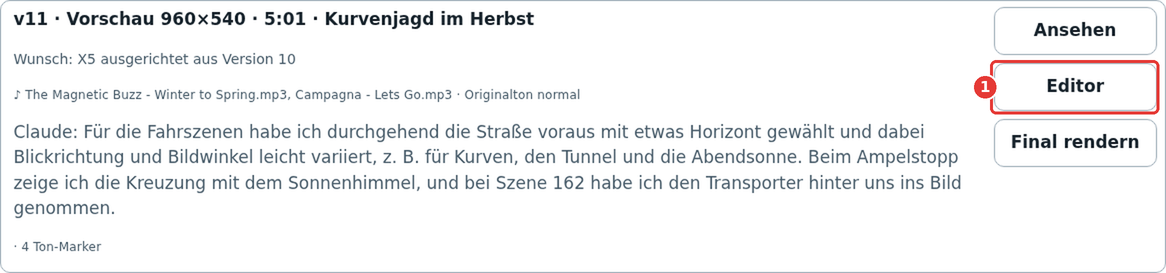
- Tap Editor (①). The version opens in the Editor.
Note: The Editor button only appears on versions with their own camera sound (from SD Migrator 2.17). Create older versions again first.
The workspace
The Editor sits as a fixed workspace over the whole window. The page behind it does not scroll, nothing shifts.
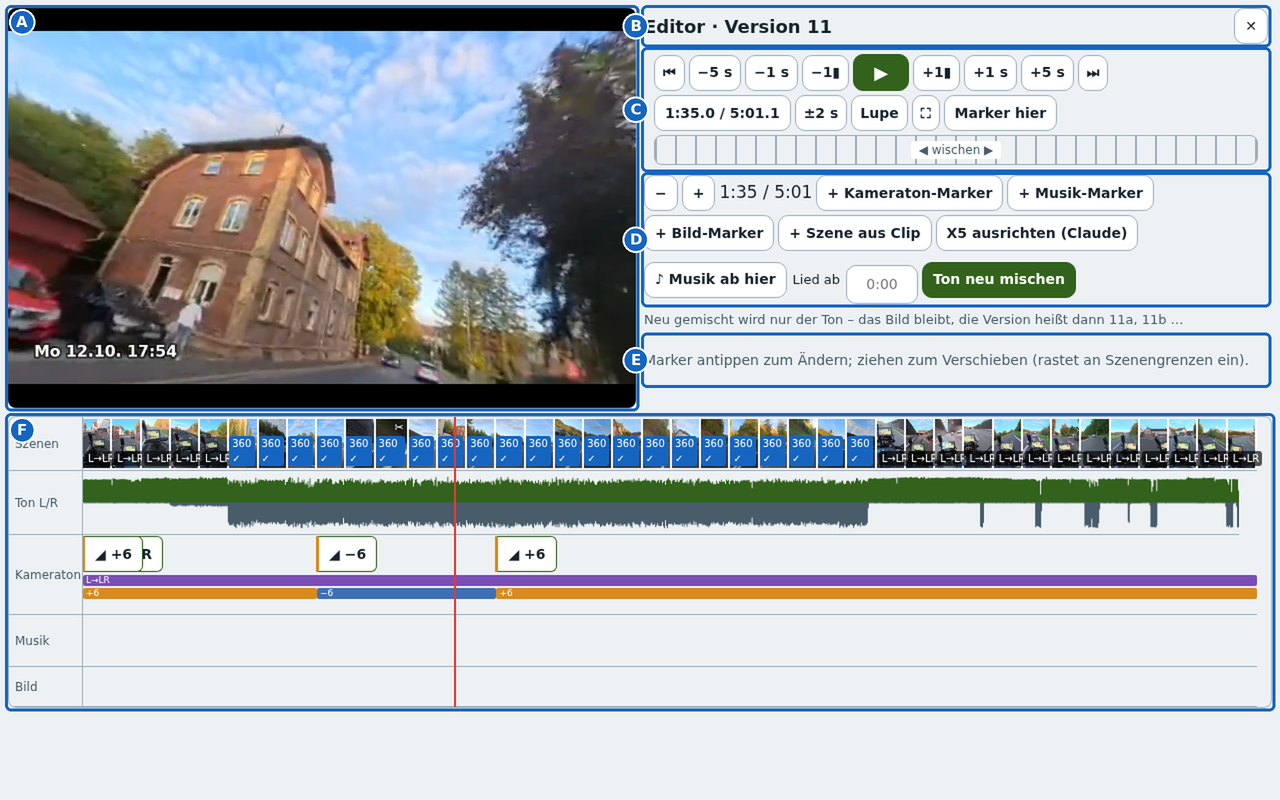
| Area | Content | |
|---|---|---|
| A | Video | The version you are editing (¼ of the window). Bottom left: date and time of recording. |
| B | Title | Version number and ✕ to close. Stays in place when scrolling. |
| C | Control bar | Play and position precisely. |
| D | Tools | Zoom, set markers, insert scenes, X5, music start, save. |
| E | Details | Settings for the tapped marker or scene, below them the clip browser and X5 aiming. |
| F | Timeline | Scenes, waveform and the three marker tracks. |
The right-hand area (B–E) scrolls on its own. In portrait, video, right-hand area and timeline are stacked.
Control bar: precise positioning
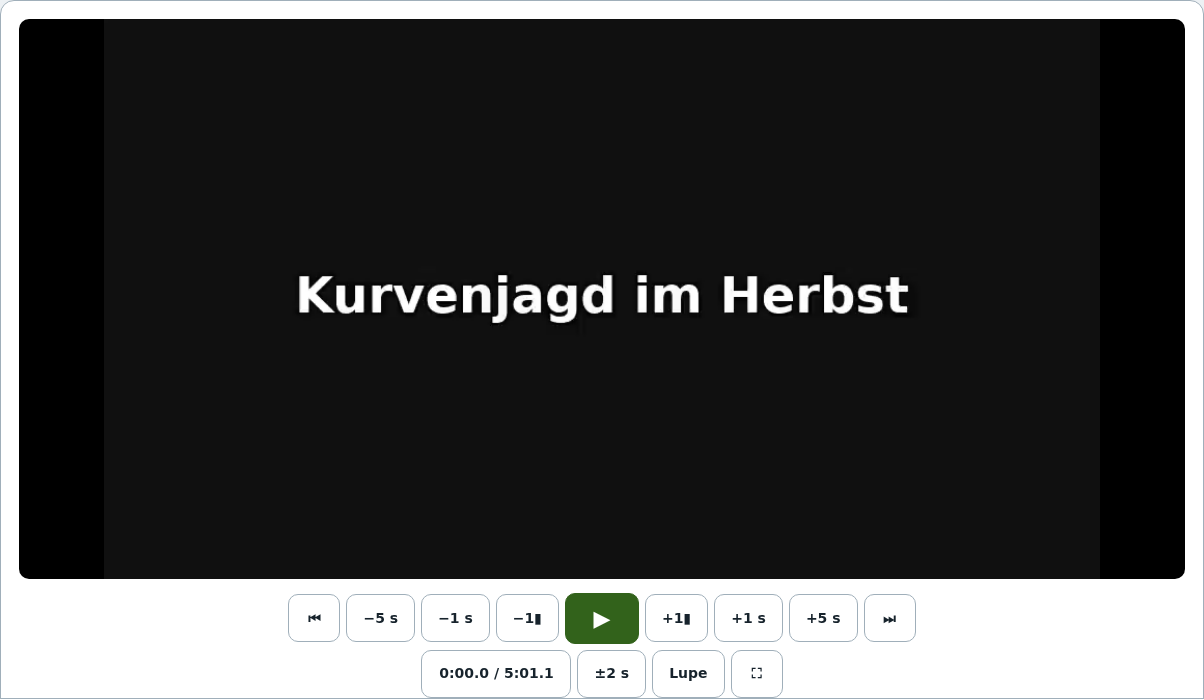
Viewer and Editor share the same control bar. The video picture itself does not respond to taps, so nothing jumps by accident when wearing gloves.
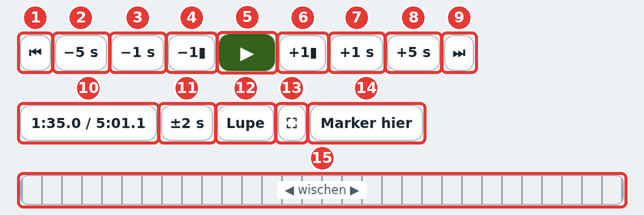
| No. | Button | Effect |
|---|---|---|
| 1 | ⏮ | To the start of the current or previous scene |
| 2 | −5 s | 5 seconds back |
| 3 | −1 s | 1 second back |
| 4 | −1▮ | 1 frame back |
| 5 | ▶ / ⏸ | Play / Pause |
| 6 | +1▮ | 1 frame forward |
| 7 | +1 s | 1 second forward |
| 8 | +5 s | 5 seconds forward |
| 9 | ⏭ | To the start of the next scene |
| 10 | Time | Position / length with tenths. Tapping opens Go to (enter as m:ss.s, a comma also works) |
| 11 | ±2 s | Preview listening: plays from 2 s before to 2 s after the spot and returns |
| 12 | Loupe | Frame strip and magnified waveform ±5 s |
| 13 | ⛶ | Full screen |
| 14 | Marker here | Sets a camera sound marker exactly at the playhead (Editor only) |
| 15 | Jog | Swipe with your finger to move the playhead finely, approx. 1 s per cm – regardless of zoom |
The Loupe
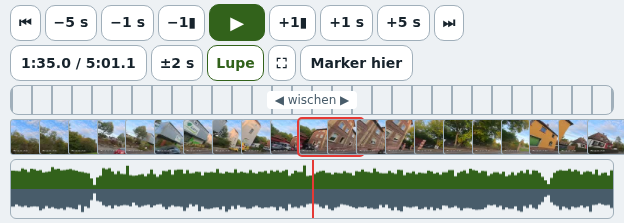
The Loupe shows 21 frames at 0.5 s intervals around the playhead. Below it you see the strongly magnified waveform for ±5 s. The red frame marks the current spot.
- Tap a frame or a spot in the waveform. The playhead jumps exactly there.
- Tap Loupe again to close it.
Tip: With the Loupe you can find the start of a sentence or a cut to the exact frame.
Tools
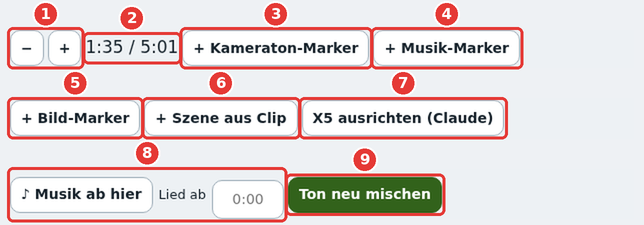
| No. | Tool | Effect |
|---|---|---|
| 1 | − / + | Zoom the timeline out or in |
| 2 | Time | Playhead position |
| 3 | + Camera sound marker | Marker on the Camera sound track at the playhead |
| 4 | + Music marker | Marker on the Music track |
| 5 | + Picture marker | Marker on the Picture track (fade out and in) |
| 6 | + Scene from clip | Opens the clip browser |
| 7 | Aim X5 (Claude) | Claude chooses the view direction of all X5 scenes |
| 8 | ♪ Music from here · Song from | Music start in the video and in the first song |
| 9 | Remix sound | Saves sound changes as a sub-version. After cut changes the button is called Render cut |
A dot after the button (“Remix sound ●”) indicates unsaved changes. Below it, one sentence explains what happens when you save.
Timeline
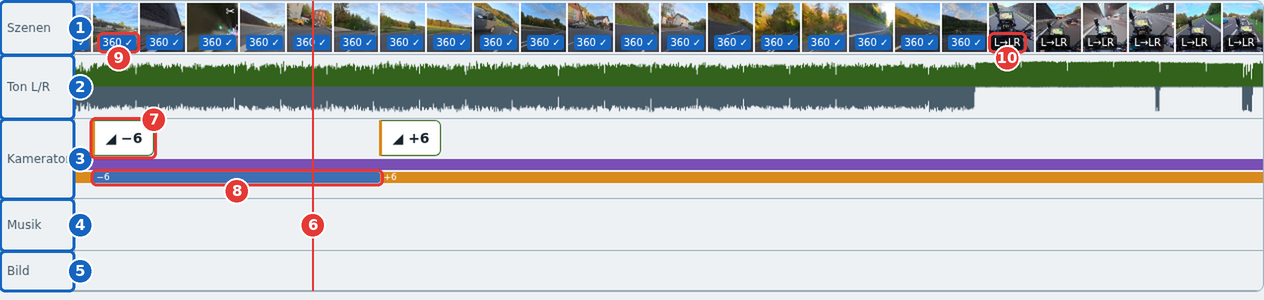
| No. | Element | Meaning |
|---|---|---|
| 1 | Scenes | Each scene with thumbnail, width = length. Tapping selects it |
| 2 | Sound L/R | Waveform of the camera sound: left channel at the top, right channel at the bottom |
| 3 | Camera sound | Marker track for the cameras’ sound |
| 4 | Music | Marker track for the music |
| 5 | Picture | Marker track for fades |
| 6 | Playhead | Red line. Tap anywhere in the timeline to place it there |
| 7 | Marker | Flag with action and value (◢ +6 = Level +6 dB). Tap = edit, drag = move |
| 8 | State band | Coloured bar: shows how long a marker applies – until the next marker of the same kind |
| 9 | 360 / 360 ✓ | X5 scene; with ✓ the view direction is set |
| 10 | L→LR | Camera channel default: left channel on both sides (e.g. helmet mic of the Ace Pro 2) |
Other symbols on the scenes:
- ✂ = scene inserted by hand
- R→LR = right channel on both sides
Zoom with − and + in the tools. The timeline scrolls horizontally.
Sound markers
A marker is attached to a scene plus offset. If you move or trim the scene, the marker moves with its frame.
A marker is a state: it applies from its position until the next marker of the same kind on the same track. To return to “normal”, set a reversing marker (e.g. 0 dB, on, camera setting).
Setting markers
- Move the playhead to the desired spot (Jog, Loupe, ±1 frame).
- Tap + Camera sound marker, + Music marker, + Picture marker or Marker here.
Editing markers
Tap the marker. The Details area shows track and time, the action, the value and Delete.

| Track | Action | Values | Effect |
|---|---|---|---|
| Camera sound | Level | −15, −6, 0, +6, +15 dB | Volume with 1 s transition |
| Camera sound | On/off | on, off | Fade sound in or out (2 s) |
| Camera sound | Channels | left on both, right on both, Stereo, camera setting | e.g. only the helmet mic, without satnav |
| Camera sound | Speech in front | on, off | Music becomes much quieter while someone speaks; speech +3 dB |
| Music | Level | −15, −6, 0, +6, +15 dB | Music volume |
| Music | On/off | on, off | Fade music in or out |
| Picture | On/off | off, on | Fade out to black or fade in (2 s, also across cuts) |
Example from the image above: +6 dB from 0:00, −6 dB from 1:00 (where it gets loud), +6 dB again from the following scene. The state band shows the sections in colour.
Moving markers
Drag the marker. It snaps to scene boundaries.
Orphaned markers
If a scene drops out of the cut, its marker remains visible as “orphaned” below the Details. Bring it to the playhead or delete it.
Cutting scenes
Tap a scene in the timeline. The playhead jumps to its start, and the cutting tools appear under Details.
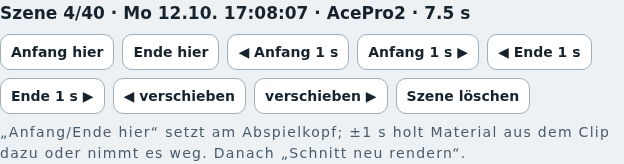
| Tool | Effect |
|---|---|
| Start here / End here | Scene starts or ends at the playhead |
| ◀ Start 1 s / Start 1 s ▶ | Add or remove 1 s of material from the clip before |
| ◀ End 1 s / End 1 s ▶ | Shorten the end by 1 s or add 1 s from the clip |
| ◀ move / move ▶ | Move the scene one position forward or back |
| Delete scene | Remove the scene from the cut |
The header shows the scene’s number, recording time, camera and length. After the first change a note appears: video and waveform still show the old cut. Only Render cut creates the new version. Markers stay with their frame.
Trimming to the exact frame
- Tap the scene.
- Use Jog or the Loupe to go to the desired spot.
- Tap Start here or End here.
Inserting a scene from a clip
+ Scene from clip opens the clip browser. It shows the selected clip in the large video area – for the X5, both fisheye lenses side by side.
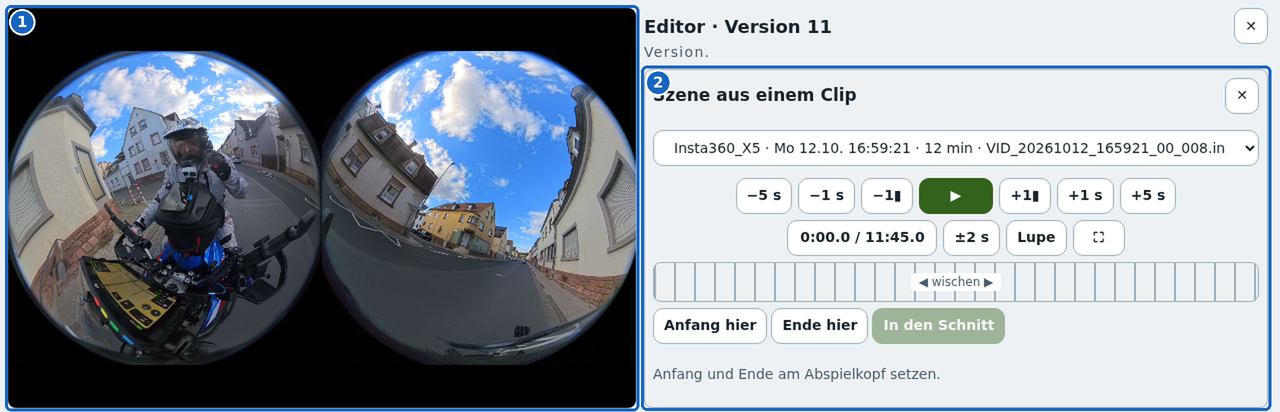
- Video area – the clip plays here instead of the version.
- Clip browser – at the top, the selection of all the day’s clips (camera, time, length, file name), below it its own control bar with Jog and Loupe.
To insert a scene:
- Choose a clip.
- Go to the start point and tap Start here.
- Go to the end point and tap End here.
- Tap Into the cut.
The scene is placed according to its recording time and marked ✂. ✕ closes the browser and the video area shows the version again.
Aiming X5 scenes (360°)
The Insta360 X5 films all around. For the film you choose a view direction for each scene. Without aiming, the Pi shows the front lens, tilted 35° downwards.
By hand
Tap a scene marked 360. The panorama appears below the cutting tools.
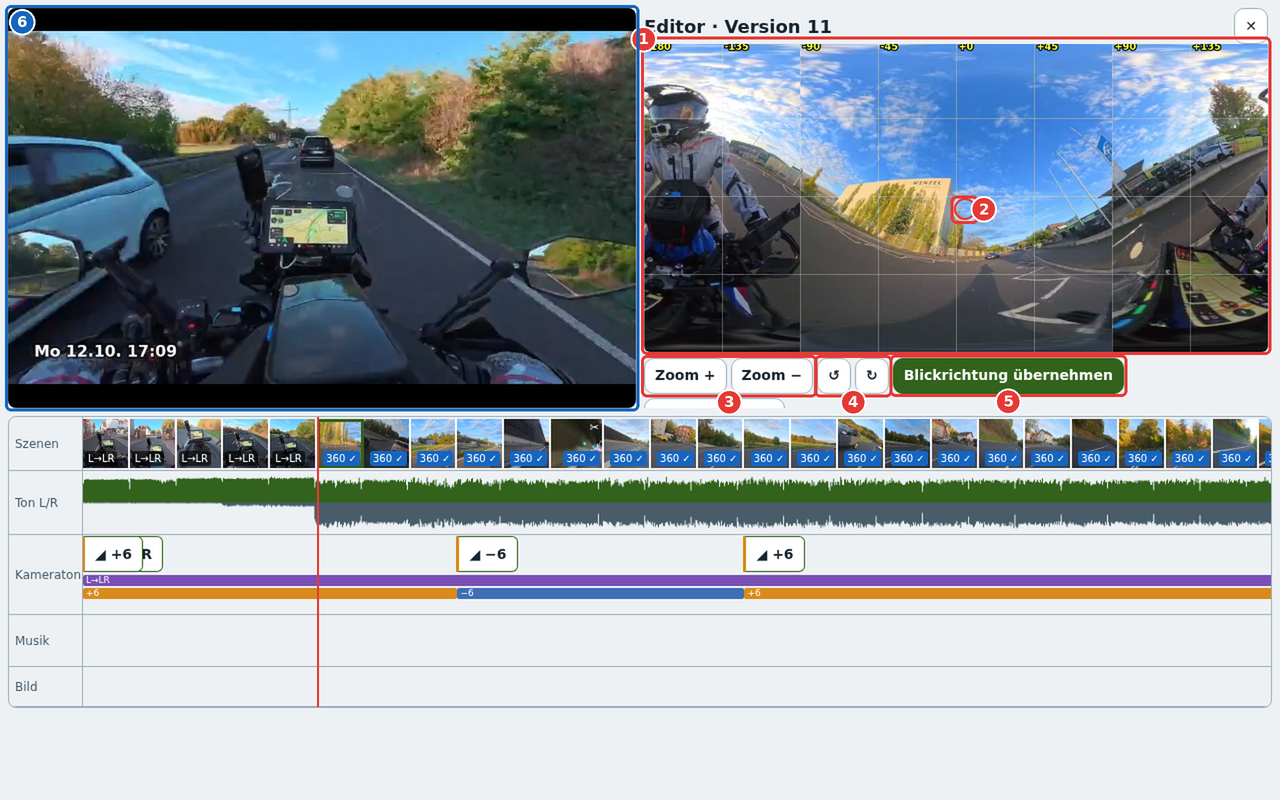
| No. | Element | Effect |
|---|---|---|
| 1 | Panorama | The whole sphere unfolded, grid every 45°. Degrees at the top: 0 = centre, positive to the right |
| 2 | Crosshair | The chosen view direction. Tap or drag in the image to set yaw (left/right) and pitch (up/down) |
| 3 | Zoom + / Zoom − | Narrower or wider field of view |
| 4 | ↺ / ↻ | Tilt the image (roll), e.g. if the camera was mounted crooked |
| 5 | Use this view | Saves the view for this scene; the label becomes 360 ✓ |
| 6 | Video | Continues to show the version |
Below are the values (yaw, pitch, roll, field of view). Default (front) resets the scene. The Preview of the view shows exactly the section that will be rendered.
Note: Applied view directions only take effect after Render cut.
Aim the X5 with Claude
Aim X5 (Claude) opens this panel under Details:
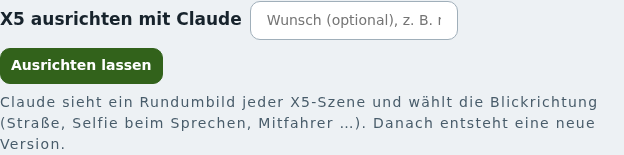
Claude looks all around each X5 scene and chooses a view direction per scene: the road when riding, selfie when talking, passenger, landscape at a stop.
- Optionally enter a wish, e.g. “more selfie, show Frank”.
- Tap Aim it. A new version is created.
- Then touch up individual scenes by hand.
The preview uses reduced-size X5 preview files. Render final uses both lenses of the original recording.
Music: start and first song
- ♪ Music from here: The music only starts at the playhead position, e.g. after an intro with camera sound. The button then shows e.g. ”♪ from 0:12”. ✕ removes the start again.
- Song from: The first song only starts from this point (enter as
m:ss), e.g. to skip a long intro in the song.
Both take effect with Remix sound. Which tracks play is set with the music selection on the Preview page (or by Claude for a wish).
Saving: Remix sound or Render cut
| Remix sound | Render cut | |
|---|---|---|
| When | only camera sound/music markers or music start changed | scenes, X5 views or picture markers changed |
| Duration | seconds | minutes (depending on length) |
| Picture | carried over unchanged | re-rendered |
| Result | sub-version: 11 → 11a, 11b … | new version: 12 |
| Markers and music | remixed | carried over |
The Editor chooses the right button itself: as soon as scenes or picture markers have changed, Remix sound becomes Render cut (for picture markers only, Render picture). After saving, the Editor closes. The new version is at the top of the list.
Caution: If you tap ✕ with unsaved changes, the Editor asks “Discard the changes?”. If you confirm, the changes are lost.
Render final
- Tap Render final on the finished version.
- The Pi renders 1080p from the original files (X5 from both lenses).
This takes several times the film length. For the X5 the Pi needs about 7 s per second of film. In heat the Pi throttles its performance. The page does not need to stay open while rendering.
Caution: Keep the Pi cool while rendering and do not switch it off.
In the viewer (Watch), preview and final play with the same control bar:
Keyboard
On a PC or with a keyboard on the tablet:
| Key | Effect |
|---|---|
| Space | Play / Pause |
| ← / → | 1 frame back / forward |
| Shift + ← / → | 1 second back / forward |
| J | 2 seconds back |
| K | Pause |
| L | Play; L again = double speed on/off |
| M | Marker here |
Tips and troubleshooting
- No “Editor” button: The version is older than 2.17 and has no camera sound of its own. Create a new version with Cut again automatically or a wish.
- Scene images or panorama stay blank: Update to SD Migrator 2.22.2 or newer.
- Video still shows the old cut: This is normal. You only see cut changes in the new version after Render cut.
- Marker is one scene off: Markers are attached to scenes and snap to scene boundaries when dragged. For a spot in the middle of a scene, it is better to position the playhead precisely and create the marker anew.
- Music too loud under speech: On the Camera sound track, set Speech in front: on. The music then becomes quieter every time someone speaks.
- Satnav announcements in the sound (Ace Pro 2): Set the channel default L→LR (helmet mic only) under Settings → Day preview: camera sound channels, or set a Channels marker for individual spots.
- Clip missing in the clip browser: The camera clock is wrong, so the clip is on a different day. Correct the time on the Preview page under Camera clocks (or with the Time clapper under Settings).
- Rendering slows down: The Pi throttles in heat. Ventilate the case and check the charge level and power supply. You can see temperature and voltage in the status bar at the top.